
By 2pm, my eyes felt like I had been staring into a sandstorm. Dry, itchy, slow to focus. I blamed the screen, cut back on coffee, tried blue-light glasses. Nothing stuck. After three years of full-time remote work, I finally ran an honest audit of my home office lighting and realized I had been solving the wrong problem. The screen was not the villain. The lighting around it was.
Eye strain from remote work comes from a predictable combination: high ambient contrast between your screen and its surroundings, zero dedicated task lighting, and a monitor sitting at the wrong angle relative to a window. Fix those three things and the afternoon headaches largely disappear. This guide walks through exactly how to do that, step by step, with the specific tools that actually work at a home office budget.
If Your Eyes Are Shot by 2pm, Your Desk Lamp Is Probably the Problem
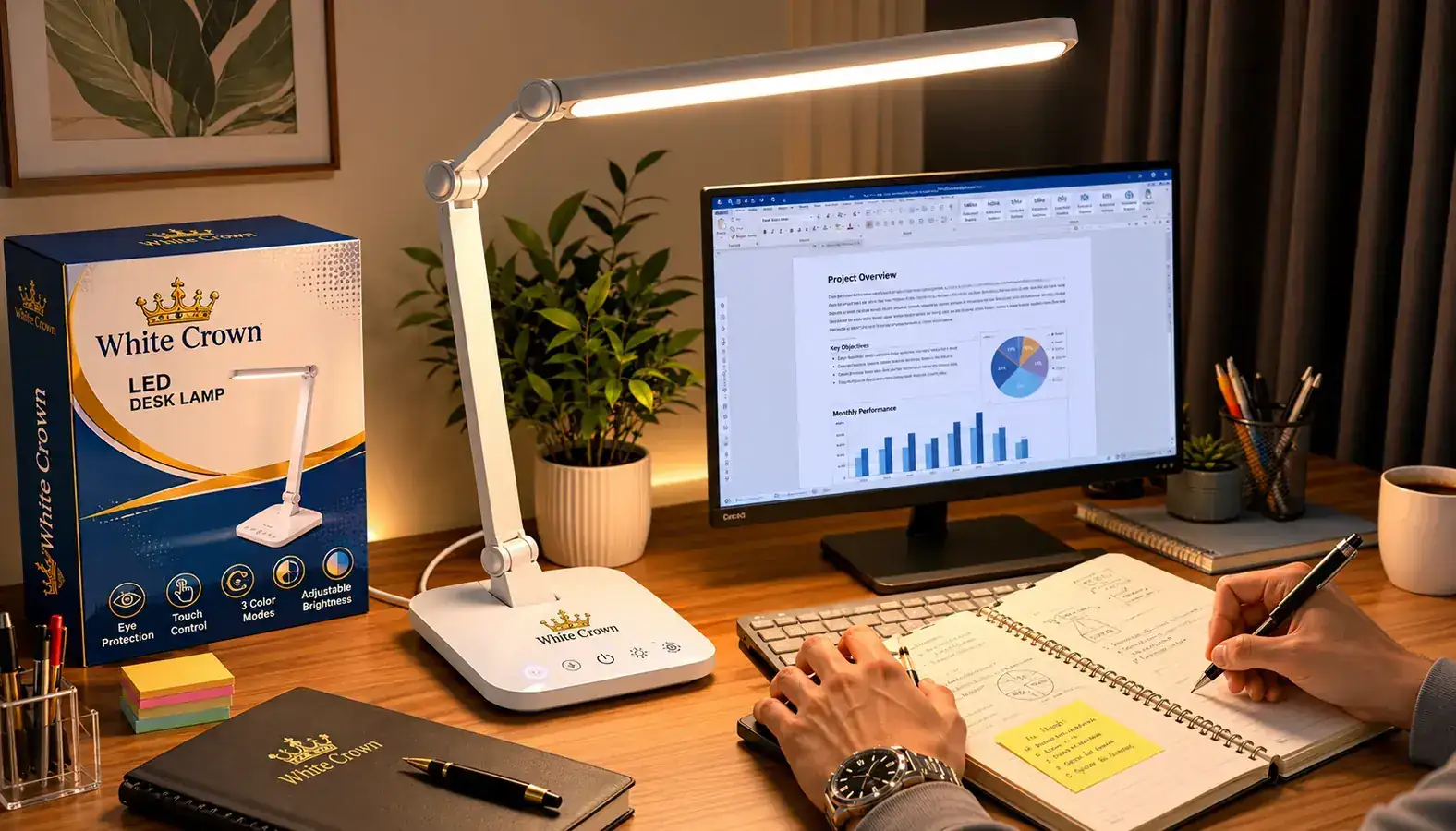
The White Crown LED Desk Lamp gives you five lighting modes, seven brightness levels, and a memory function that recalls your last setting. It is the single most effective change most remote workers can make to their desk lighting at a budget price point. Check today's price before it moves.
Amazon Check Today's Price on Amazon →Step 1: Audit Where Your Room Light Is Actually Coming From
Before you buy anything, sit at your desk and look at your monitor at the time of day when your eyes feel worst. Turn off every artificial light in the room. Now look at the windows. If a window is directly in front of you or directly behind you, you have found your first problem. A window behind you projects light straight onto your screen and creates a glare layer over everything you are trying to read. A window in front of you creates a bright backdrop that forces your pupils to constrict, making the screen look dim by comparison even at full brightness.
The fix is simple: position your desk so windows are to your side, ideally the left side if you are right-handed. If your room layout does not allow it, get a blackout curtain for the problem window. A good blackout panel is affordable and eliminates the single biggest source of screen glare in most home offices. Do not skip this step and go buy a lamp first. A lamp placed in a room with uncontrolled ambient light just adds to the visual chaos.
While you are doing this audit, check your overhead light. Ceiling fixtures almost always sit directly above your head, which means they cast light straight down onto your desk and create a bright reflection in the top portion of your monitor. If you notice a pale rectangular wash across the upper half of your screen, your overhead light is the source. You do not have to turn it off entirely, but dimming it significantly during focus work reduces that overhead glare substantially.
Step 2: Add a Dedicated Desk Lamp with the Right Color Temperature
Most home offices have overhead ambient light and nothing else. That arrangement works fine for watching TV from a couch, but it is wrong for close-up screen work. When the only light source is above and behind you, your eyes are constantly adapting between the bright room behind you and the self-lit monitor in front of you. That adaptation cycle, repeated thousands of times across a workday, is what causes the tired, dry-eye feeling most remote workers chalk up to too much screen time.
A desk lamp solves this by adding a localized light source close to your work surface, which narrows the brightness gap between your screen and its immediate surroundings. The key variable is color temperature. For daytime focus work, you want something in the 4000K to 5000K range: a clean, neutral white that does not add yellow warmth but also avoids the harsh blue-white of a 6500K daylight bulb. For evening work or late-afternoon sessions, stepping down to 3000K warm white reduces the blue light load on your eyes without making the room feel like a candlelit restaurant.
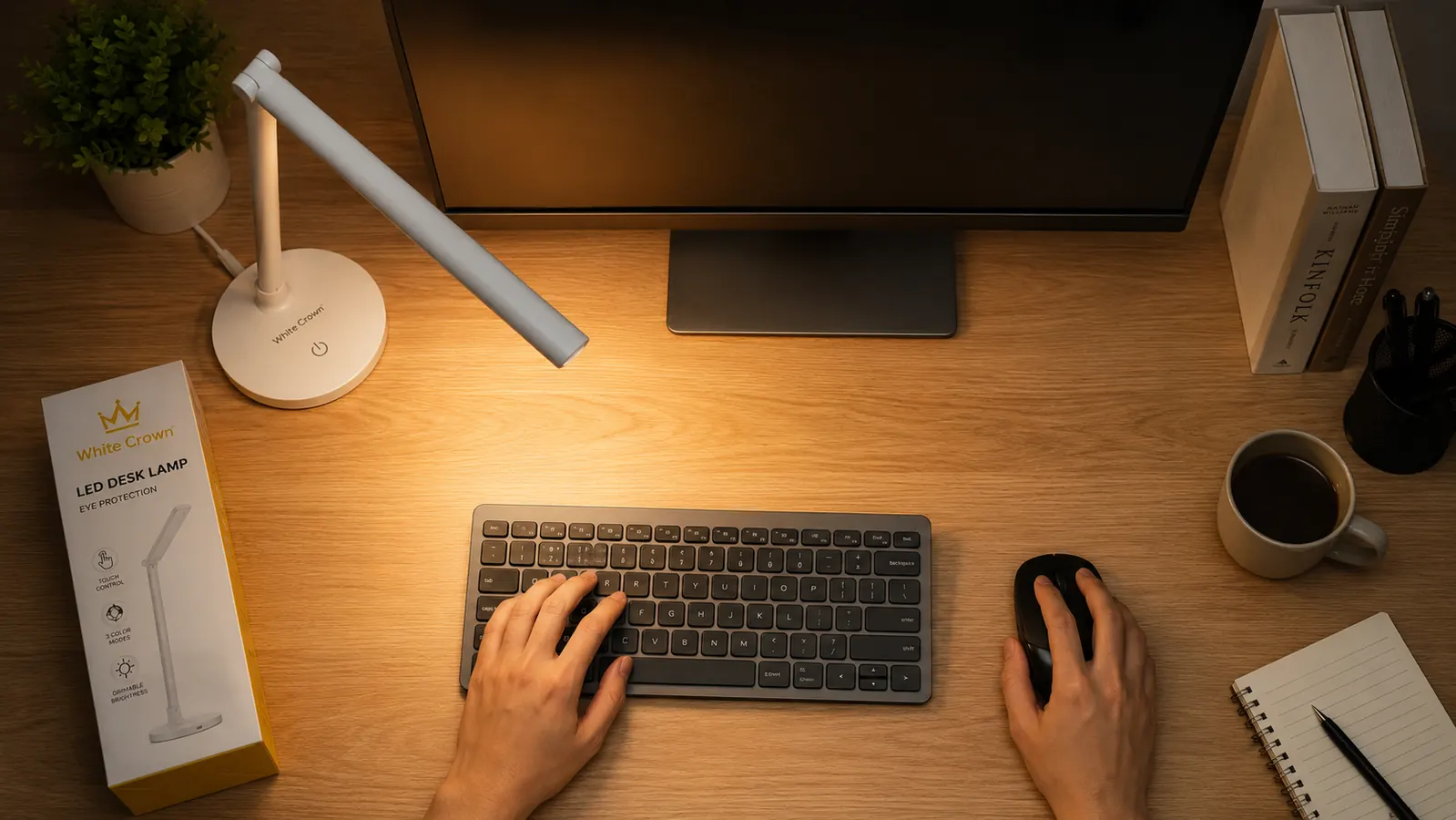
The White Crown LED Desk Lamp handles this with five lighting modes: reading, studying, relaxing, sleeping, and computer mode. The computer mode specifically targets that 4000K-ish neutral range optimized for screen work. Combined with seven brightness levels and a memory function that recalls your last setting when you turn it on, you can dial it in once and stop thinking about it. At a budget price with over 16,000 Amazon ratings, it is not a premium lamp. But for eliminating the core eye strain problem in a typical home office, it does the job without asking you to spend more than the problem is worth.
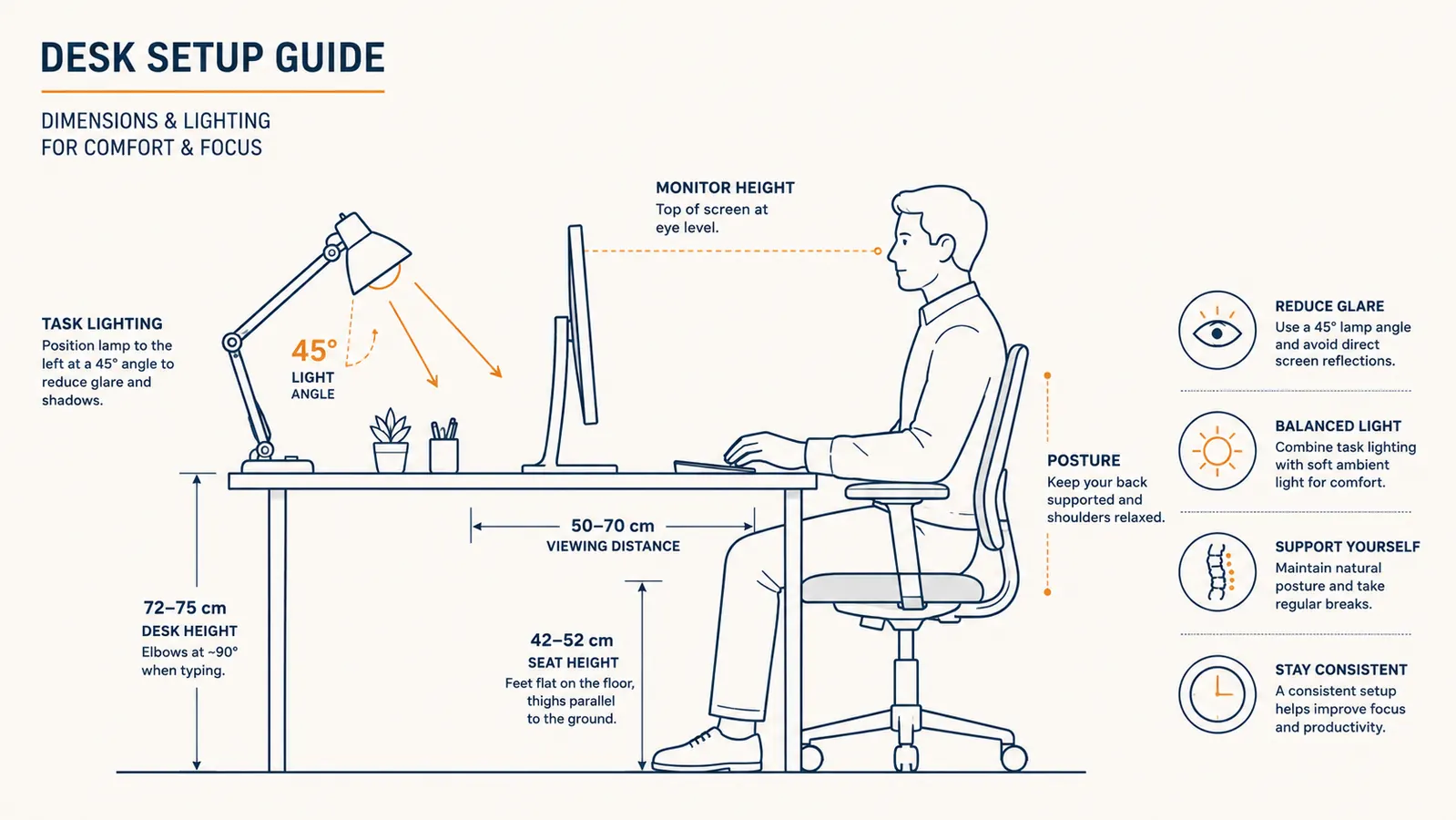
Position the lamp to the side of your monitor, not in front of it. The lamp should sit at roughly a 45-degree angle to the left or right of your screen, aimed at your desk surface and keyboard rather than directly at your eyes. This creates what lighting designers call indirect fill light: it brightens the area around the screen without adding a competing bright source in your field of vision.
Step 3: Get Your Monitor Brightness and Distance Right
A properly placed lamp will do most of the work, but monitor settings can either help or undercut it. The standard advice to match your monitor brightness to the room brightness is correct but too vague to act on. Here is a practical calibration method: open a mostly white web page or document and hold a sheet of white printer paper beside your monitor. If the screen looks dramatically brighter than the paper, your brightness is too high. If the screen looks noticeably dimmer, you have gone too far. You want them to look roughly equivalent. That comparison takes about 15 seconds and gives you a calibrated starting point that the built-in auto-brightness feature on most monitors never quite reaches.
Distance matters more than most people realize. The standard recommendation is 20 to 28 inches between your eyes and the screen, but a more reliable gauge is arm's length: if you extend your arm straight ahead with your fingers relaxed, your fingertips should just reach or lightly graze the screen. Any closer and your eyes are doing constant micro-focusing work to read text. Any farther and you are leaning forward to see it, which introduces neck and upper-back strain on top of the eye problem. If you are squinting at text even at arm's length, increase your system font size before you move the monitor closer.
A lamp placed in a room with uncontrolled ambient light just adds to the visual chaos. Fix the windows first, then add the lamp.
Step 4: Apply the 20-20-20 Rule as a Hard Calendar Rule, Not a Soft Intention
The 20-20-20 rule comes from the American Optometric Association: every 20 minutes, look at something at least 20 feet away for at least 20 seconds. It is not new information. Most remote workers know it and almost none follow it consistently, because it requires interrupting focused work on a regular interval, which feels disruptive. The solution is to make it automatic rather than intentional.
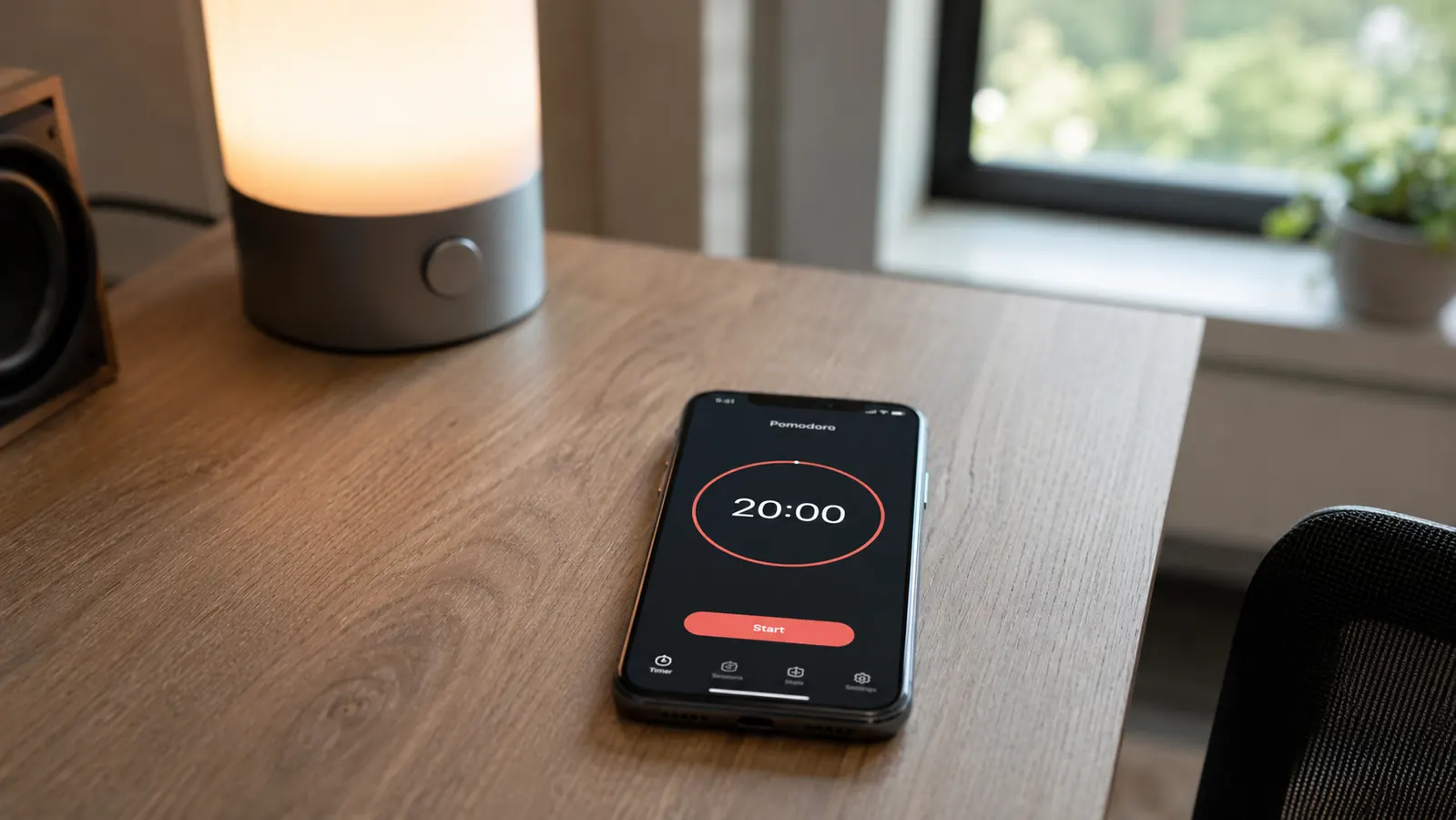
Set a recurring 20-minute timer on your phone or use a free Pomodoro app. When the timer fires, step away from the screen and look out a window or across the room for 20 seconds before resetting. It sounds too simple to matter, but the mechanism is real: looking at a distant object relaxes the ciliary muscles inside your eye that hold focus at screen distance. After eight hours of near-focus work, those muscles are fatigued in exactly the way your calf muscles are fatigued after a long run. The 20-second breaks are the equivalent of brief stretching sets. Skip them all day and the soreness accumulates.
Pair this habit with conscious blinking. Screen work reduces your blink rate from the normal 15 to 20 times per minute to as low as 5 to 7 times per minute. Reduced blinking is the direct cause of the dry, gritty feeling most people associate with eye strain. During your 20-second break, blink slowly and deliberately 10 times. It feels faintly ridiculous but it works. If you are in a dry climate or running forced-air heat or AC, a small desktop humidifier near your workstation makes a measurable difference in tear film stability over a full workday.
Step 5: Set Up Night Mode Transitions Before the Sun Goes Down
Most of the eye strain fixes above address daytime work conditions. Evening and night-session conditions introduce a different problem: your room gets darker as the day ends but your screen stays the same brightness, so the contrast between screen and surroundings increases sharply just as your circadian system is ramping down blue-light sensitivity. This is the double hit that causes the headache-behind-the-eyes feeling that many remote workers get during evening catch-up sessions.
Two changes close this loop. First, enable Night Mode or Night Shift on your operating system and set it to activate automatically at sunset. On macOS it is in System Settings under Displays. On Windows it is in Display Settings under Night Light. These features shift your monitor's color toward the warm end of the spectrum in the evening, which reduces blue light output without meaningfully affecting most work tasks. Text, spreadsheets, and email are all perfectly readable in warm mode. Video and color-critical design work are the only tasks where you will want to pause it.
Second, switch your desk lamp to its warm white or relaxing mode for evening sessions. On the White Crown lamp this means stepping down from computer mode to the 3000K relaxing mode, which gives you enough task light to see your keyboard and desk without adding a bright neutral-white source that fights the warm shift you just enabled on your monitor. The result is a consistent warm color environment across both your screen and your desk, which reduces the visual contrast your eyes are adapting to and makes evening sessions noticeably less fatiguing.
None of these changes require spending significant money. The lamp costs very little. The blackout curtain, if you need one, runs budget-friendly. The rest is software settings and a recurring timer. Most remote workers who implement all five steps report noticeable improvement within a week, because the cumulative effect of reduced contrast, better task lighting, and regular muscle relaxation is substantial. The main obstacle is not cost or effort. It is that the fixes are boring enough that most people keep waiting for a more interesting solution that does not exist.
What Else Helps
If you have applied all five steps and still notice significant eye fatigue, consider an anti-glare screen protector for your monitor. These are not the same as blue-light filter films, which have questionable evidence behind them. Anti-glare coatings reduce the specular reflections from windows and overhead lights that make text look lower-contrast than it should. They are not a replacement for the lamp and window fixes, but they add a marginal improvement for people whose rooms have unavoidable reflection sources. A 27-inch anti-glare filter is available at moderate cost depending on brand.
A monitor arm is also worth considering if you are still using your monitor on its factory stand. Factory stands have very limited height adjustment, which usually leaves most people looking slightly downward at their screen rather than straight ahead. Looking down compresses the muscles at the back of your neck, which restricts blood flow, which contributes to the headache component of eye strain. Getting the top edge of your monitor to roughly eye level keeps your gaze horizontal and removes that compressive loading. The HUANUO single monitor arm is the most practical option at this budget and is covered in the full review on this site.
The White Crown Lamp Is the Fastest Fix on This List
Five lighting modes. Seven brightness levels. A USB charging port on the base so you stop losing your phone charger under a pile of cables. Budget-friendly with a memory function that recalls your last setting. If your desk lighting is still just overhead ambient, this is where to start. Check today's price on Amazon before restocking runs out.
Amazon Check Today's Price on Amazon →